Lightswitch Fields
Lightswitch fields give you a simple toggle input and store a boolean value.
#Settings
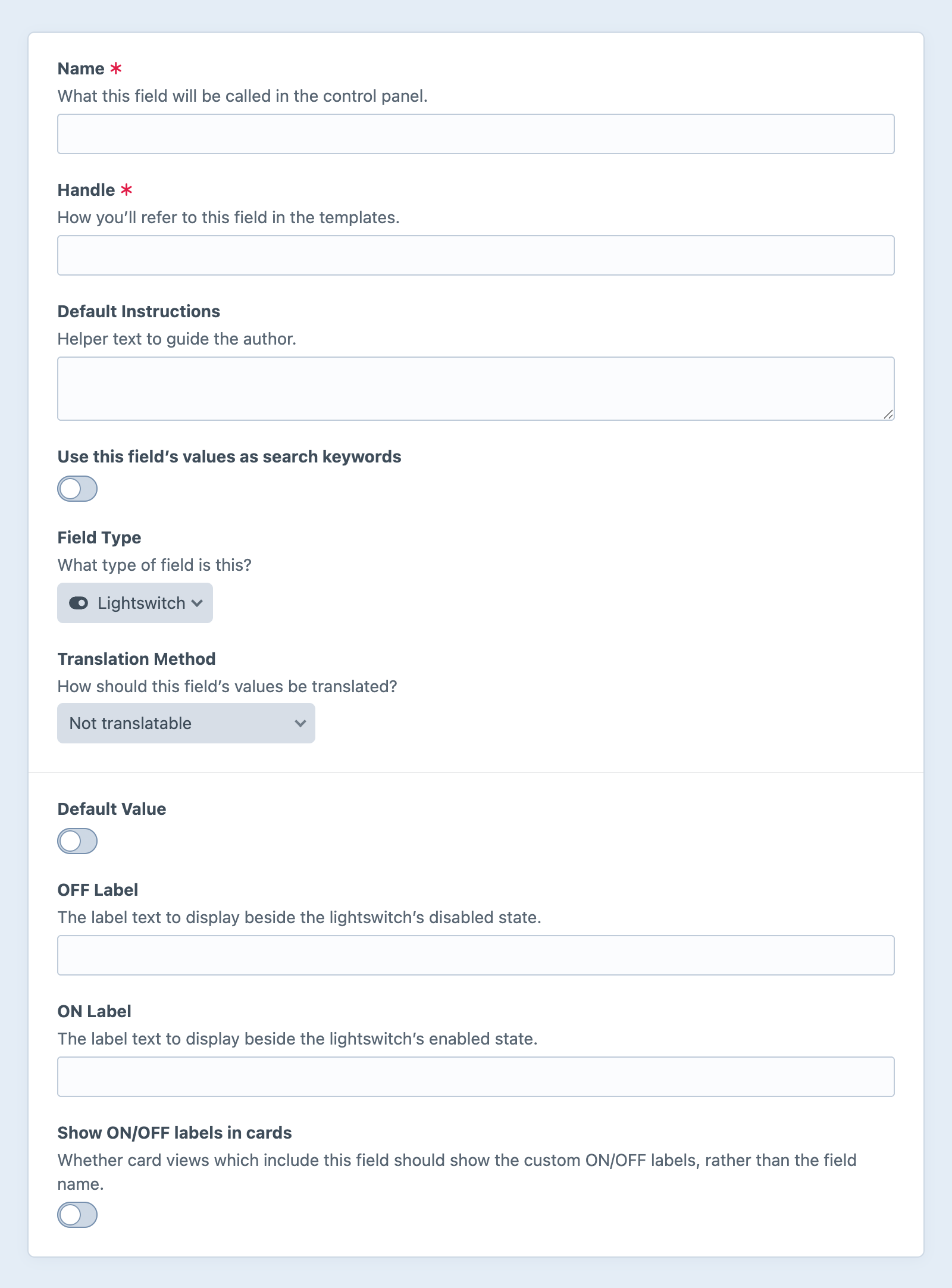
Lightswitch fields have the following settings:
- Default Value
- Choose a default value for the field.
- OFF Label and ON Label
- The text and accessibility label for the toggle’s disabled and enabled states.
- Show ON/OFF labels in cards
- When rendered on a card, this determines whether the ON/OFF labels are displayed (instead of the field’s name).
These labels can be localized for control panel users with the
sitetranslation category.
#Development
#Querying Elements with Lightswitch Fields
When querying for elements that have a lightswitch field, you can filter the results based on the lightswitch field data using a query param named after your field’s handle.
Possible values include:
| Value | Fetches elements… |
|---|---|
true | …with the switch on. |
false | …with the switch off. |
See below for more information about how default values work in queries.
{# Fetch entries with the lightswitch field enabled #}
{% set entries = craft.entries()
  .myFieldHandle(true)
  .all() %}
// Fetch entries with the lightswitch field enabled
$entries = \craft\elements\Entry::find()
    ->myFieldHandle(true)
    ->all();
#Default Value Handling
Elements without a value for a lightswitch field (say, because they haven’t been saved since the field was added, or because one of the query’s relevant field layouts doesn’t include an instance of it) are treated as if they have the Default Value. For example, querying against a field that defaults to off…
{% set archive = craft.entries()
  .section('essays')
  .isFeatured(false)
  .all() %}
…would return all posts with an explicit false value, or no saved value. This can result in unpredictable behavior when some elements in a set may not have the field. Suppose we want to gather content across two sections (featured “essays” as well as implicitly high-priority “bulletins”):
{% set headlines = craft.entries()
  .section(['essays', 'bulletins'])
  .isFeatured(true)
  .all() %}
If only the essays section has an isFeatured lightswitch field, entries in the bulletins section are assumed to have the field’s default value (false), and are therefore excluded.
For more control over this behavior, you have two options: 5.7.0+
Pass each acceptable value, explicitly…
{% set headlines = craft.entries()
  .section(['essays', 'bulletins'])
  .isFeatured([true, null])
  .all() %}
Pass a hash with a
strictkey…{% set headlines = craft.entries() .section(['essays', 'bulletins']) .isFeatured({ value: true, strict: true, }) .all() %}
#Working with Lightswitch Field Data
If you have an element with a lightswitch field in your template, you can access its value using the field’s handle:
{% if entry.myLightswitchField %}
  <p>I’m on!</p>
{% else %}
  <p>I’m off.</p>
{% endif %}
if ($entry->myLightswitchField) {
    // I’m on!
} else {
    // I’m off.
}
The field’s on and off labels are not intended for display to users, but you can get them via the fields service:
{% set field = craft.app.fields.getFieldByHandle('myLightswitchField') %}

{{ entry.myLightswitchField ? field.onLabel : field.offLabel }}
$field = Craft::$app->getFields()->getFieldByHandle('myLightswitchField');

echo $entry->myLightswitchField ? $field->onLabel : $field->offLabel;
onLabel and offLabel are the literal strings stored in project config; if you wish to localize them (as the control panel does), you must pass them through the site translation category.
#Saving Lightswitch Fields
In an element or entry form (opens new window) that needs to save a value to a lightswitch field, you can use this template as a starting point:
{{ hiddenInput('fields[myLightswitchField]', '') }}

{{ tag('input', {
  type: 'checkbox',
  name: 'fields[myLightswitchField]',
  value: '1',
  checked: (entry.myLightswitchField ?? false) ? true : false,
  id: 'my-checkbox-input',
}) }}

<label for="my-checkbox-input">Opt In</label>
Your input’s value can be any “truthy” looking value; Craft only stores a boolean. If you wish to capture one or more explicit values, consider using a radio, checkboxes, or multi-select field.
The hidden input is necessary to tell Craft in the POST request that the field’s value should be updated. If you do not send a value under a custom field handle (fields[myLightswitchField] in the example), Craft assumes you do not wish to update it. When the checkbox is ticked, its value is sent (1 in the example) in place of an empty string.