Accessibility
Websites and applications are used by people (and machines!) with a wide variety of capabilities.
Craft gives you a powerful suite of tools to help make your projects accessible
#Media
When marked up appropriately, text on the web is inherently accessible. The same cannot be said for visual media like images, video, and icons; without explicit descriptions or context clues, unsighted users may miss essential content.
#Alternative text
Every asset in Craft has (at minimum) a Title, which is generated from its filename on upload. You can supplement this with the native Alternative Text field by visiting
- Settings
- Assets
- Volumes
- Volume Name
Craft uses this field’s value when rendering asset thumbnails in the control panel, and when outputting an image in a Twig template:
{{ myAsset.getImg() }}
<img
  src="https://mydomain.com/uploads/images/screenshot.png"
  width="1280"
  height="800"
  alt="Screenshot of Craft’s asset volume settings page, showing the ">
For more control, you can construct img tags yourself.
The alt attribute can come from anywhere, or be defined via a series of fallbacks:
{% set thumb = result.articleThumbnail.one() %}
{{ tag('img', {
  class: 'article-thumbnail',
  src: thumb.getUrl(),
  alt: result.thumbnailDescription ?: thumb.alt,
}) }}
This example checks a local thumbnailDescription custom field on a result entry, and defaults to the alt text attached directly to the asset.
Keep in mind that not every use of an image needs alternative text! This might be a perfectly acceptable way to handle icons attached to categories or tags:
{# Decorative or “presentational” icon: #}
{{ tag('img', {
  class: 'icon icon--decorative',
  src: myAsset.getUrl(),
  height: myAsset.getHeight(),
  width: myAsset.getWidth(),
  alt: '',
}) }}
The W3C alt Decision Tree (opens new window) is a great resource for deciding what an appropriate alternative text should be.
An asset’s title is often not the correct source for descriptions—especially when a file is uploaded directly to an assets field:
# Screenshot:
screenshot_2025-12-31_11-59-59.png

# Photo from digital camera:
IMG_4567.jpg
# Screenshot:
Screenshot 2025 12 31 11 59 59

# Photo from digital camera:
IMG 4567
For this reason, Craft does not attempt to repair a missing alt attribute by falling back to the title in the absence of explicit alternative text. Generic or irrelevant alt text is also a barrier for screen reader users, and one that can be difficult to identify without a manual accessibility audit. Instead, we leave the alt attribute off entirely so the image can be flagged by automated accessibility tests.
Below, we cover a few patterns that make alternative text easier to maintain.
#Rich Text
Inserting an image into a rich text editor may not automatically populate alt attributes.
- Redactor (opens new window) — Select an inserted image and pick Edit to open a modal. Redactor incorrectly labels the alternative text field as its Title.
- CKEditor (opens new window) — Select an inserted image and pick the Change image text alternative button to add a description.
Both plugins also support captions, which convert the image into <figure> and <figcaption> elements.
#Video and captioning
Craft also uses the native alt attribute for transcripts on video and audio.
Transcripts are shown when previewing media in the control panel.
There is currently no built-in support for time-based transcripts or closed captioning (in the control panel or front-end), but you are free to implement them via custom fields:
<video id="player" src="{{ asset.getUrl() }}">

{# Assume `chapters` is a table field: #}
<ul>
  {% for chapter in asset.chapters %}
    {% set ts = chapter.timestamp | integer %}
    <li>
      <button data-timestamp="{{ ts }}" title="Seek to {{ ts }} seconds">
        {{ '%d:%02d' | format(ts // 60, ts % 60) }}
      </button>
      {{ chapter.description }}
    </li>
  {% endfor %}
</ul>

<script>
  const $video = document.getElementById('player');
  const $chapters = document.querySelectorAll('[data-timestamp]');

  $chapters.forEach(function($chapter) {
    $chapter.addEventListener('click', function(e) {
      $video.currentTime = parseFloat($chapter.dataset.timestamp);
    });
  });
</script>
Highlighting or announcing the currently-active chapter or timestamp requires additional scripting.
#Reference tags
The reference tag parser will call magic “getter” methods, so you can get a complete <img> element using a syntax like this:
{asset:1234:img}
#Markdown
Craft’s Markdown parser supports image tags (opens new window):

You may include a hard-coded URL, or use a reference tag to ensure it remains up-to-date.
#Recipes
#alt text overrides
An image may need different descriptions based on its usage. For example, if you were working with an artist collective, you may have a library of members’ work, with practical or evergreen descriptions… but when an author recycles one of those images for a news post, that description may be confusing.
You have two options for applying local description overrides:
Add a plain text field to the same field layout as your assets field.
When an author populates this field, use that text instead of the asset’saltattribute:{% set image = entry.myFeatureImage.one() %} {% set description = entry.myFeatureImageDescription ?: image.alt %} {{ tag('img', { src: image.getUrl(), alt: description, }) }}Componentize descriptions with a content block. If you wish to implement the same logic on a number of pages, it may make sense to encapsulate it in a content block field:
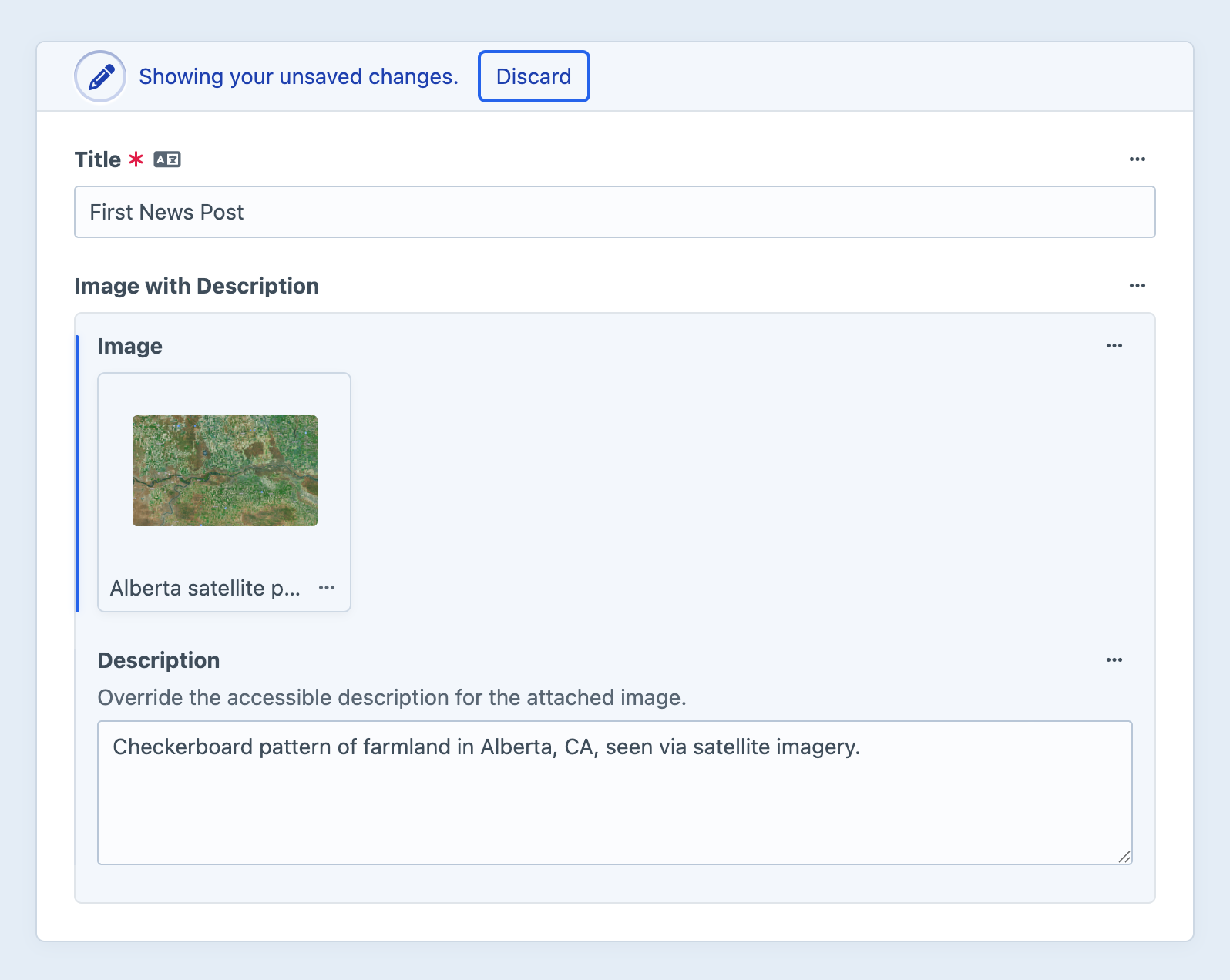
The content block field can then be accessed as
entry.imageWithDescription, and the “override” logic is standardized wherever you include it (rather than via novel field handles in each situation):{# Include this anywhere that uses the `imageWithDescription` content block field: #} {{ include('_partials/a11y-image', { ctx: entry.imageWithDescription, }) }}{% set image = ctx.image.one() %} {% set description = ctx.description ?: image.alt }} {{ tag('img', { src: image.getUrl(), alt: description, }) }}In this example,
ally-image.twigdoesn’t know (or care) where it was included from—everything it needs to resolve a proper description is available in the passedctxvariable, via consistent field handles.Content block fields are single-instance, meaning they can only appear in a field layout once. However, they can be given new handles, be used in any number of field layouts, and be repeated inside nested entries Matrix field.
#Accessible previews
You can show authors a final representation of an image (with the resolved alt text) using a Template UI field layout element:
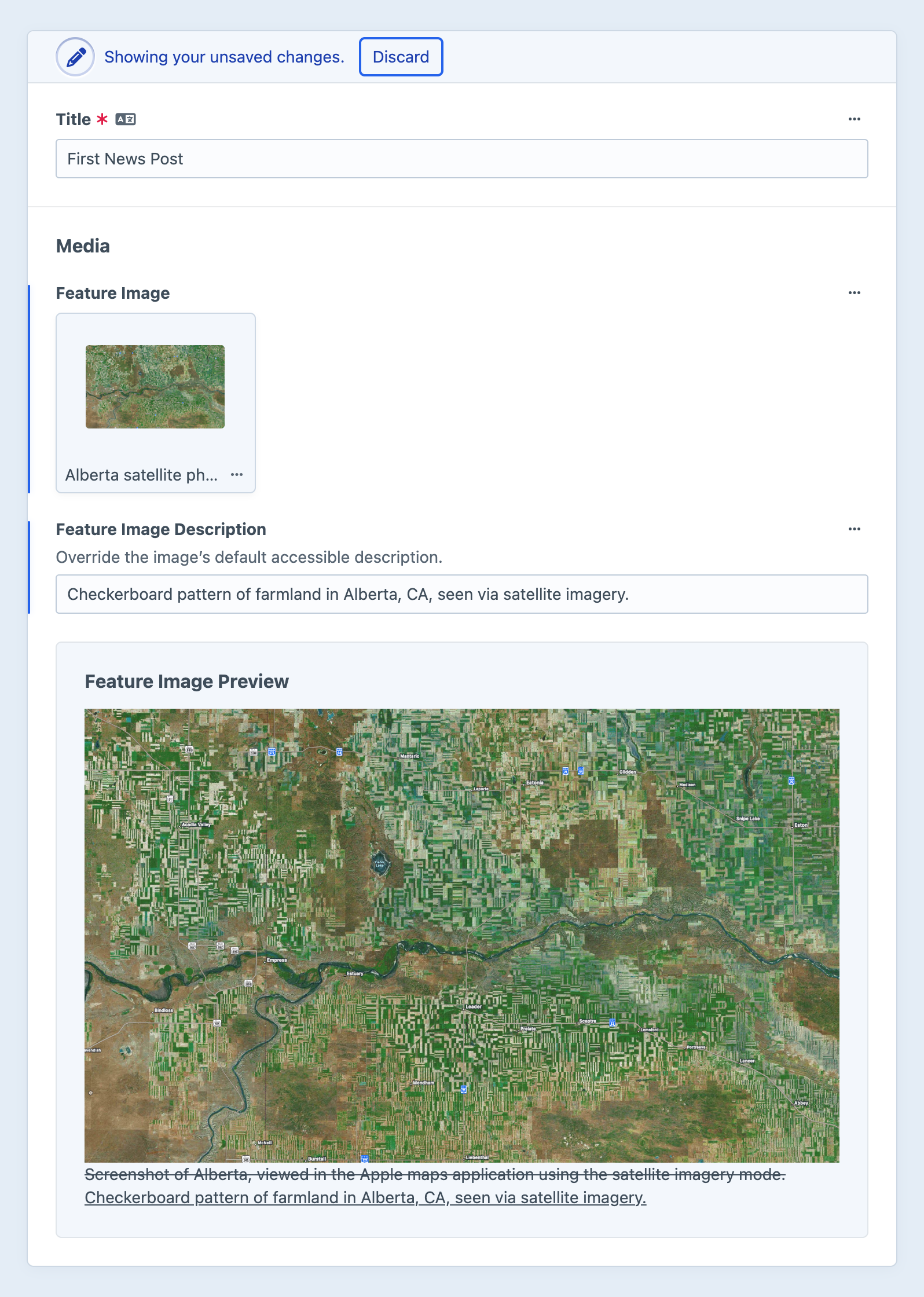
The template might look something like this:
{% set image = element.featureImage.one() %}
{% if image %}
    {% set hasGlobalDescription = image.alt is not empty %}
    {% set hasCustomDescription = element.featureImageDescription is not empty %}
    {% set description = element.featureImageDescription ?: image.alt %}

    <div class="pane">
        <h2>Feature Image Preview</h2>
        <img src="{{ image.getUrl() }}" alt="{{ description }}">

        {% if hasCustomDescription %}
            {# Use `del` and `ins` when both are present: #}
            {% if hasGlobalDescription %}
                <del>{{ image.alt }}</del>
                <ins>{{ element.featureImageDescription }}</ins>
            {% else %}
                <p>{{ element.featureImageDescription }}</p>
            {% endif %}
        {% else if hasGlobalDescription %}
            {# Just surface the original text: #}
            <p>{{ image.alt }}</p>
        {% else %}
          {# Uh oh! #}
          <p class="error">No accessible description is available for this image. Please add one to this article (using the **Feature Image Description** field, above), or set a default one on the image itself.</p>
        {% endif %}
    </div>
{% endif %}
This is essentially a more verbose implementation of the fallback logic discussed in the alternative text section.
You can do the same thing within the content block-based override!
#Jump links and labels
Many accessibility attributes (like aria-describedby and aria-controls) require absolute, unique identifiers.
Suppose you allow authors to create tabbed “tour” interfaces, within a page builder—
tab names may collide if they are based on content (tab.label | handle) or a sequence (tab-#{loop.index0}).
For content with ids or uids, you may have enough to reliably connect pieces of an interface.
Everything else (like rows in a table field) will require generating temporary identifiers:
{% set tabMap = collect([]) %}
{% set groupId = "tab-group-#{random()}" %}

{# The name for this group of tabs could be something dynamic: #}
<h2 id="{{ groupId }}-label">Tab List</h2>

<div role="tablist" aria-labelledby="{{ groupId }}-label">
  {# Loop over once to output tabs: #}
  {% for tab in tabs %}
    {# Create a temporary ID and add it to the map: #}
    {% set id = "pane-#{random()}" %}
    {% do tabMap.set(id, tab) %}

    <button
      id="{{ id }}-tab"
      role="tab"
      aria-controls="{{ id }}">
      {{ tab.label }}
    </button>
  {% endfor %}
</div>

{# ... #}

{# Loop over the decorated `tabMap` to output the controlled elements: #}
{% for id, tab in tabMap %}
  <div id="{{ id }}" role="tabpanel" aria-labelledby="{{ id }}-tab">
    {# ... #}
  </div>
{% endfor %}
This will create identifiers that look something like pane-63570161.
Note that we’re creating a two-way binding between the tab and tabpanel:
- The
tabhas anaria-controlsattribute containing the raw identifier, and anidattribute with the identifier and a suffix. - The
tabpanelhas anidattribute containing the raw identifier and anaria-labelledbyattribute, with the identifier and a-tabsuffix.
#Testing and auditing
The best time to audit your front-end for accessibility is during the design phase. The next best time is during development.
As you build your templates, tools like Deque’s Axe DevTools for Web (opens new window) can flag violations and help you prioritize remediation.
To monitor content accessibility and quickly identify issues after launch, consider using a tool like Accessible Web (opens new window)’s automated scanning tool (opens new window). Keep in mind that automated scans catch only a fraction of accessibility issues, and manual testing should also be part of your process.
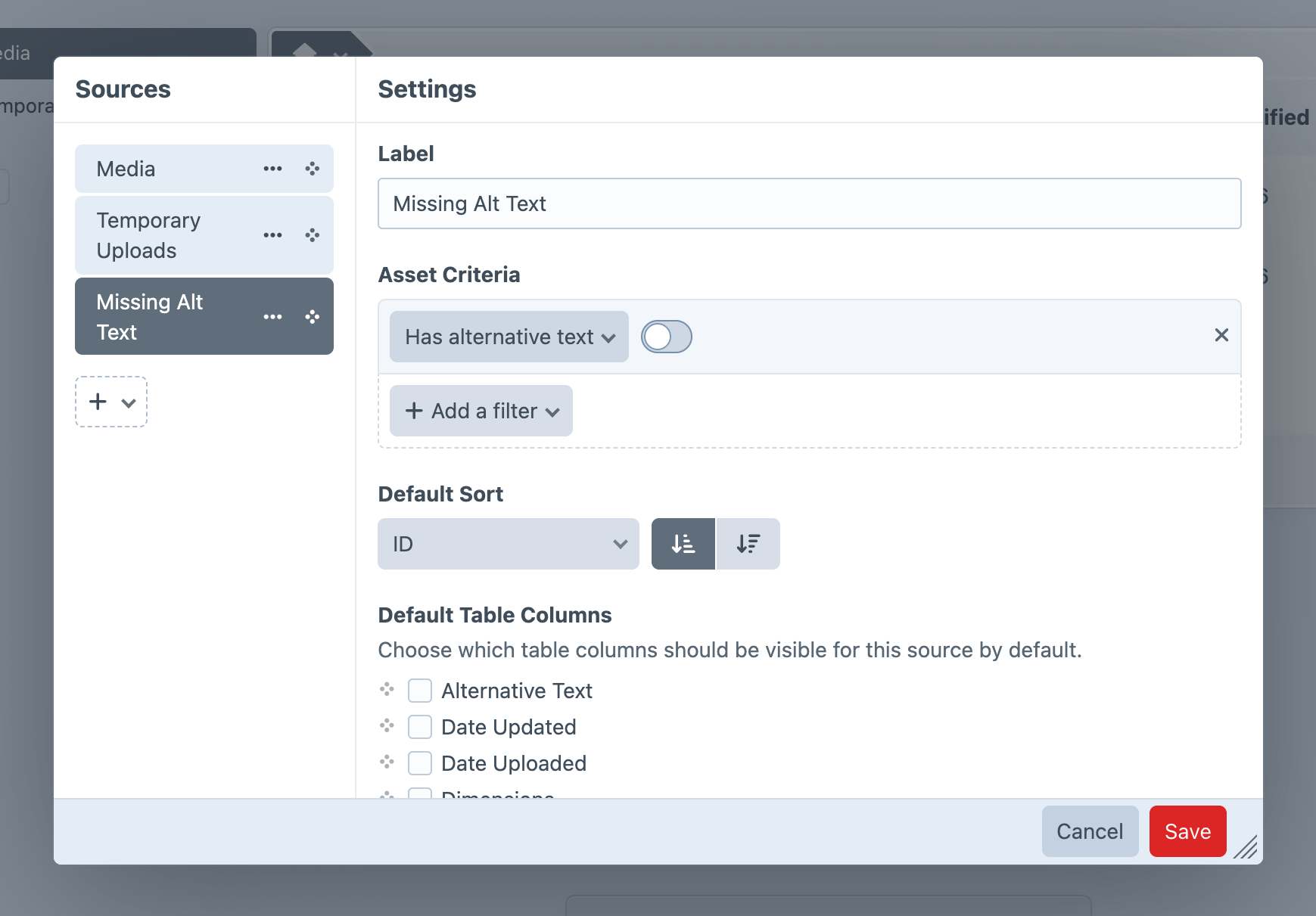
Set up a custom source for your assets using the Has alternative text condition rule to give authors a central place to remedy missing image descriptions: