
Craft 6 is now in beta!
Six months ago we tagged the first Craft 6 alpha, marking the completion of Craft’s port to Laravel. Craft 6 has now been more than two years in the making, and the result is the biggest Craft release we’ve ever shipped.
With the beta, Craft 6 is (mostly) feature-complete for 6.0. We expect the beta to last about four months, with the stable release planned for March. In the meantime, we’ll be focused on fixing bugs, polishing the control panel, and writing docs.
A Refreshed Control Panel
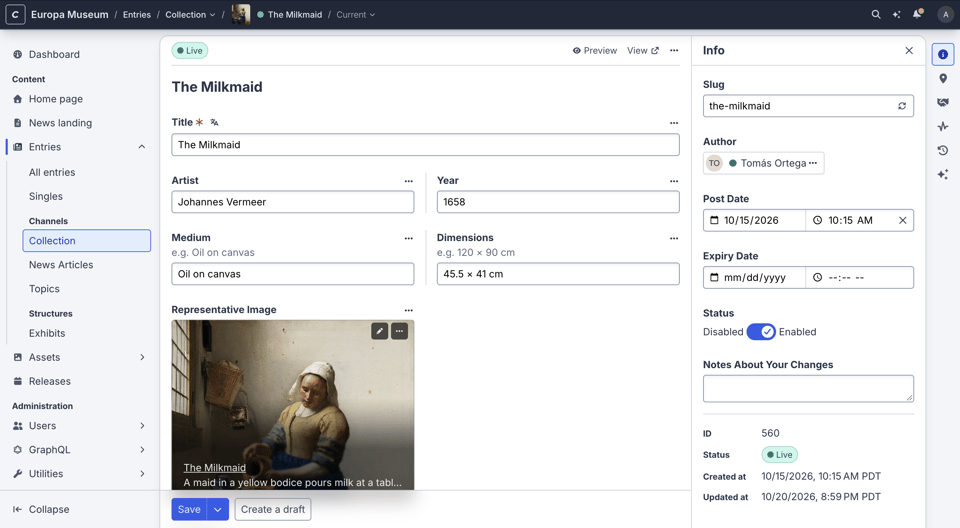
The control panel has been rebuilt as a Vue and Inertia app, and every screen has a fresh coat of paint, from buttons and form inputs to chips, status badges, and Matrix blocks.
- Dark mode. A new Theme preference offers Light, Dark, and System options.
- Cover cards. Thumbnails can now fill the whole card, with the title and details laid over the image.
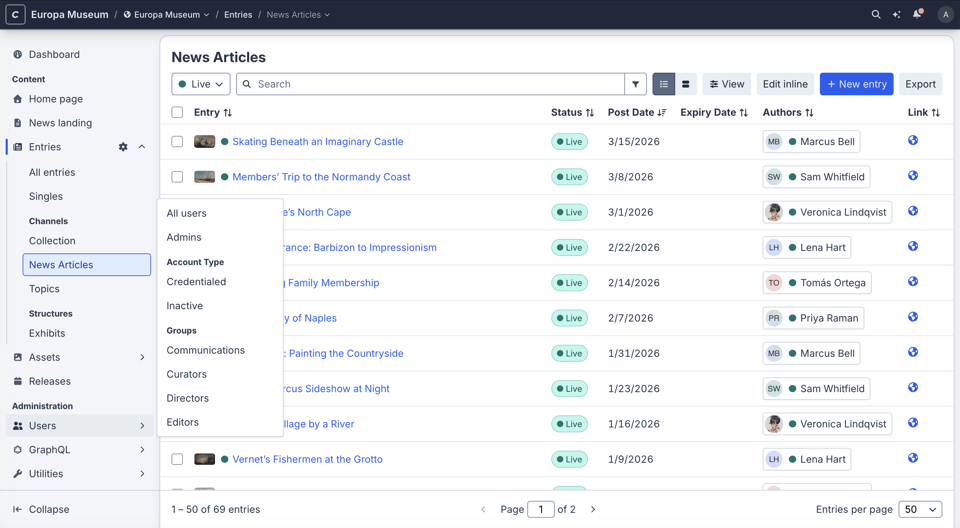
- Flyout navigation. Sections in the global nav open flyout menus, so you can jump to a sub-page from anywhere.
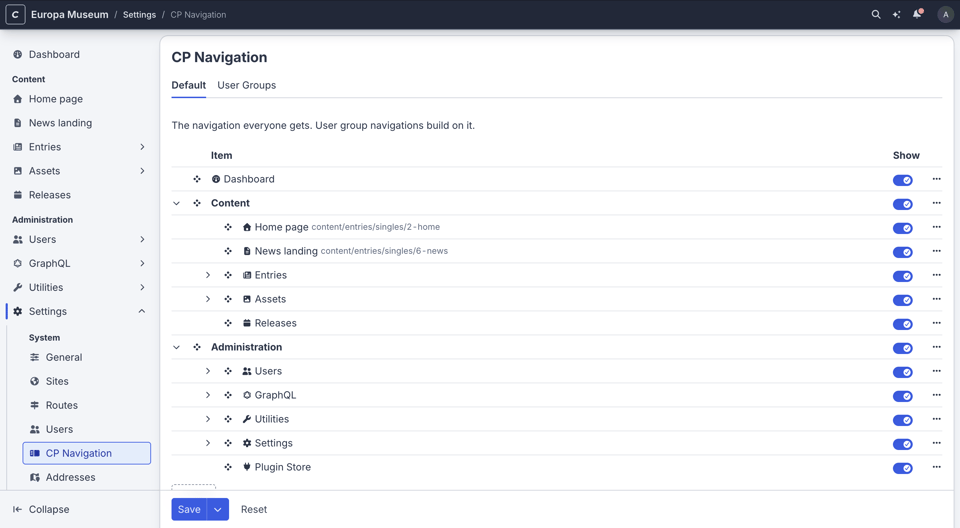
- Customizable navigation. Administrators can reorder, rename, and regroup nav items from Settings → CP Navigation, and give each user group its own navigation.
- Small touches everywhere, including resizable slideouts and modals, a notification center, stackable messages, and loading placeholders shaped like the results they’re waiting for.

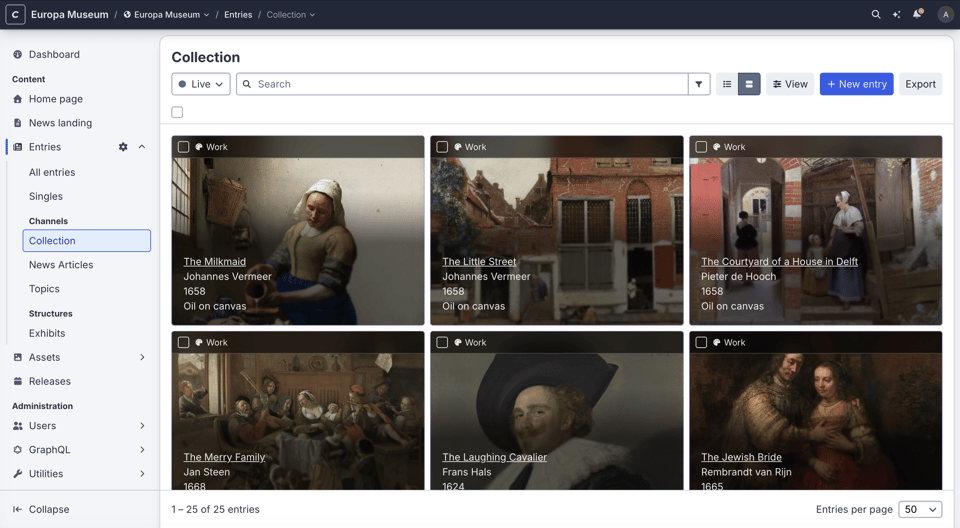
Cover cards, with thumbnails filling each card.
The redesigned entry editor.
Flyout menus in the global nav.
Reorder, rename, and regroup nav items in Settings → CP Navigation.
Mobile-friendly
The control panel’s layout has been reworked for small screens, so you can review and edit content from a phone or tablet. Relations can be reordered on touch devices, and the Compare screen stacks each field’s two versions on narrow screens.
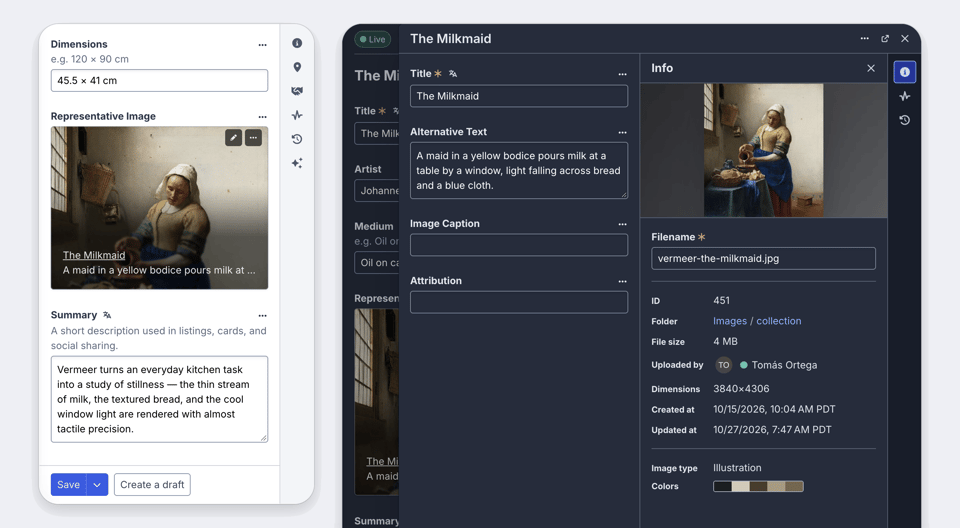
The entry editor on a phone and a tablet.
Command Palette
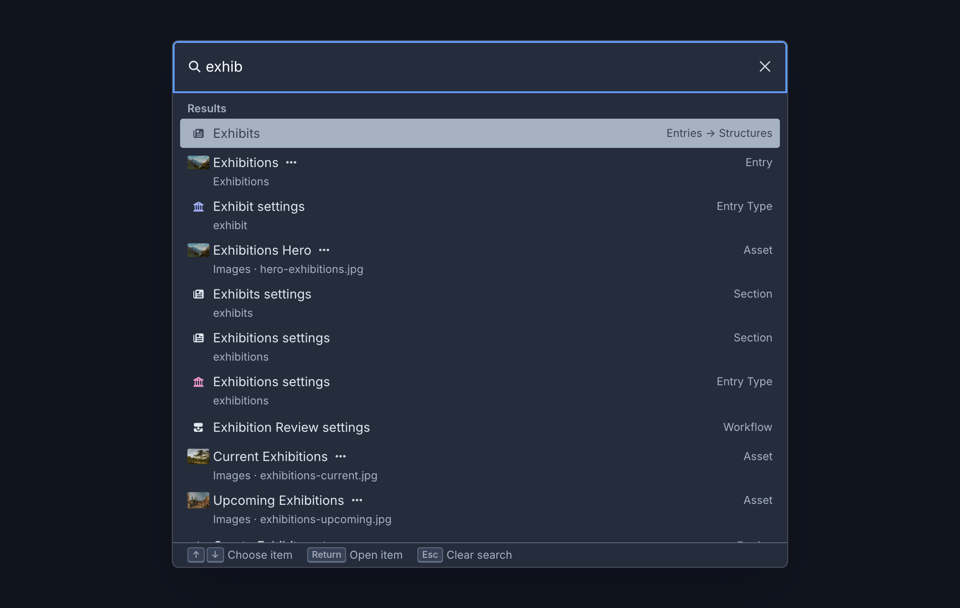
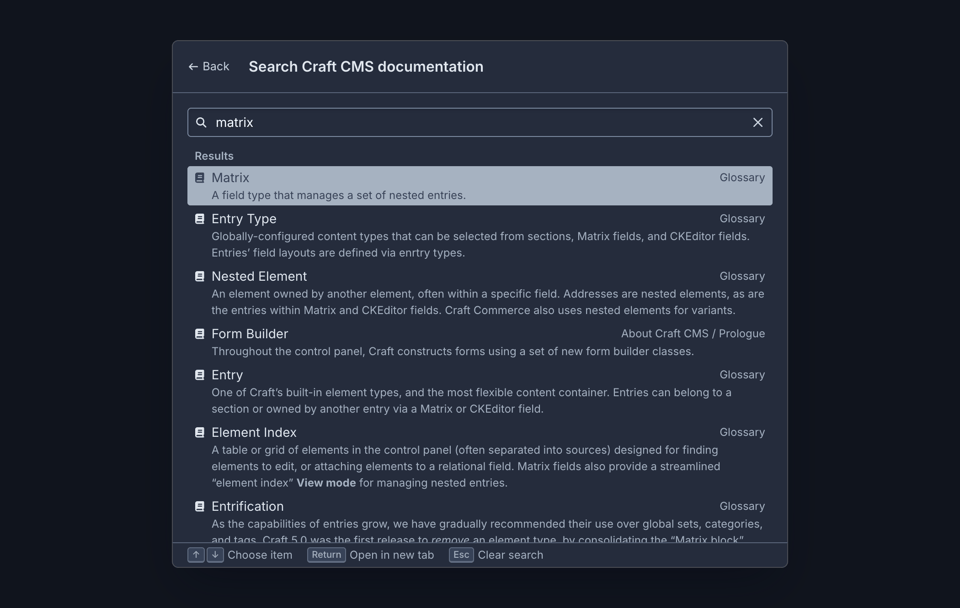
Press ⌘K from any page to open the new command palette. It finds entries, assets, users, settings, and control panel pages, as well as fields, tabs, and Matrix blocks on the page you’re on. It searches the Craft documentation, too.
The palette can run actions as well, like creating entries, publishing releases, clearing caches, and changing your preferences, with the same permission checks as the screens they stand in for. And before you’ve typed anything, it lists the pages you visited recently.
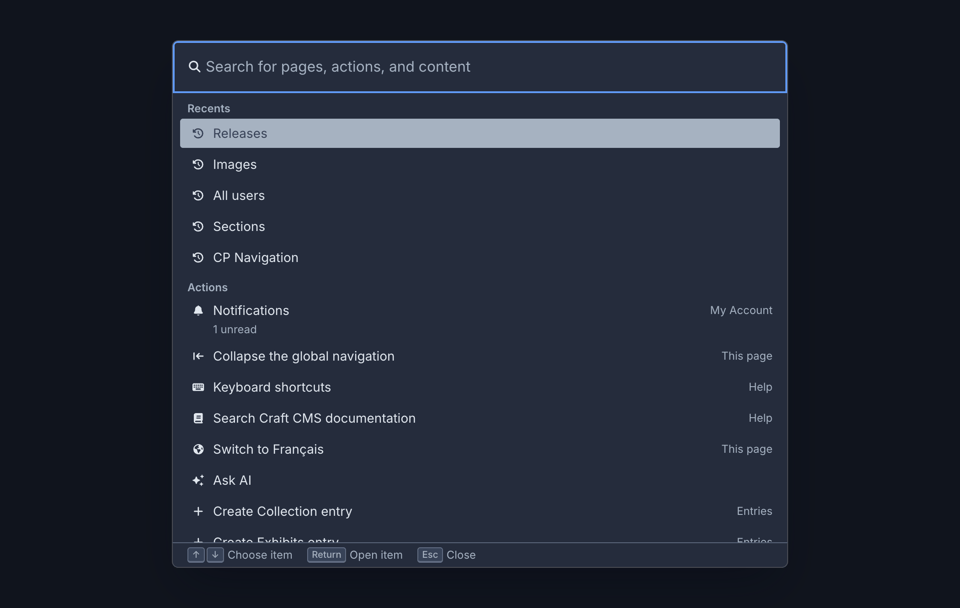
Pages you’ve visited recently, before you’ve typed anything.
Search entries, assets, settings, and more from anywhere.
Search the Craft documentation without leaving the control panel.
Ask AI
Ask AI is a new assistant that sits beside every screen in the control panel. Open it from the sparkles button in the header, or with ⌘I.
It works through Craft’s MCP tools as the signed-in user, so it can only see and do what you can. Ask it about your content, and it’ll answer with the actual elements. Ask it to make changes, and it’ll propose them for you to review and apply to the form. Nothing is saved until you say so, and any tool that would change something needs your approval first.
You can give it context by adding fields, entries, and other items to a message, or by mentioning them with @. Administrators can also write guidance and skills that the assistant follows when it works with your content.
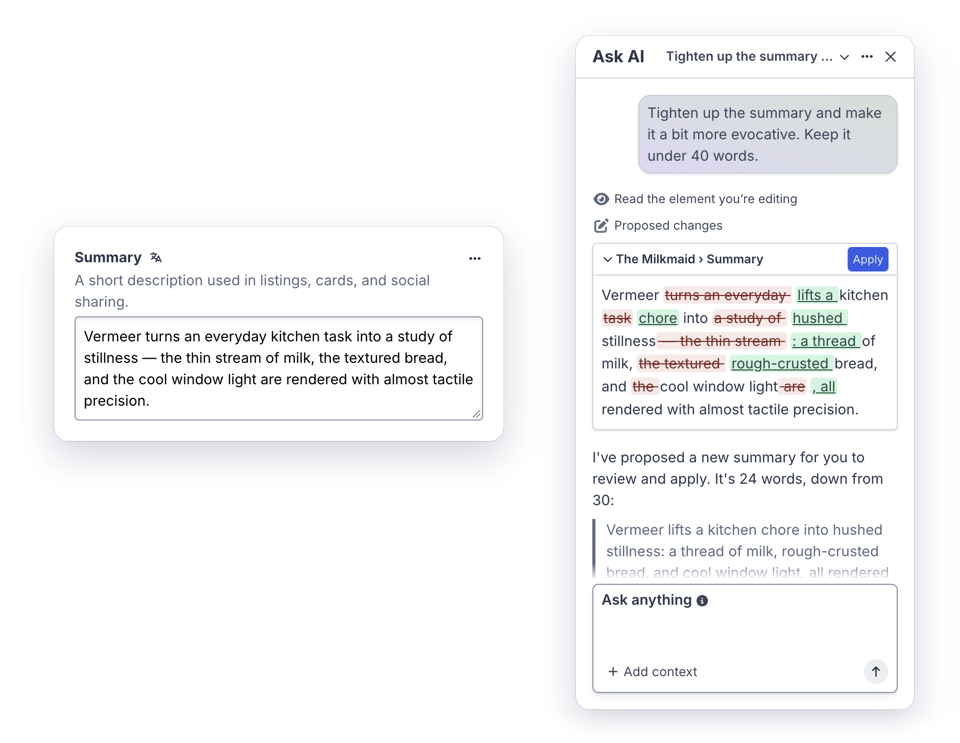
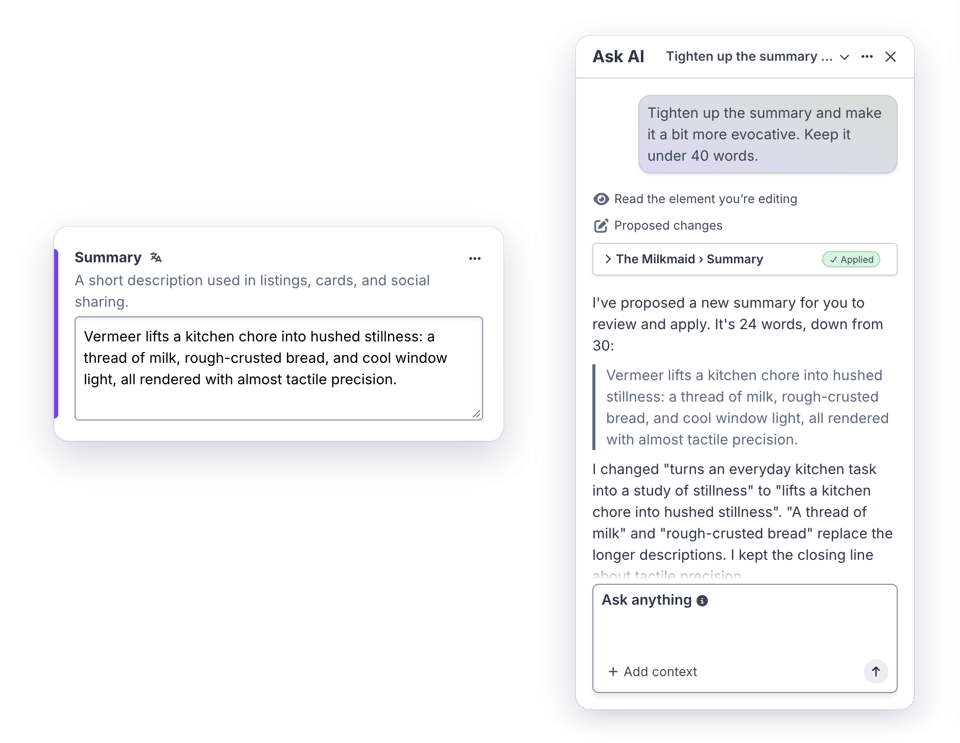
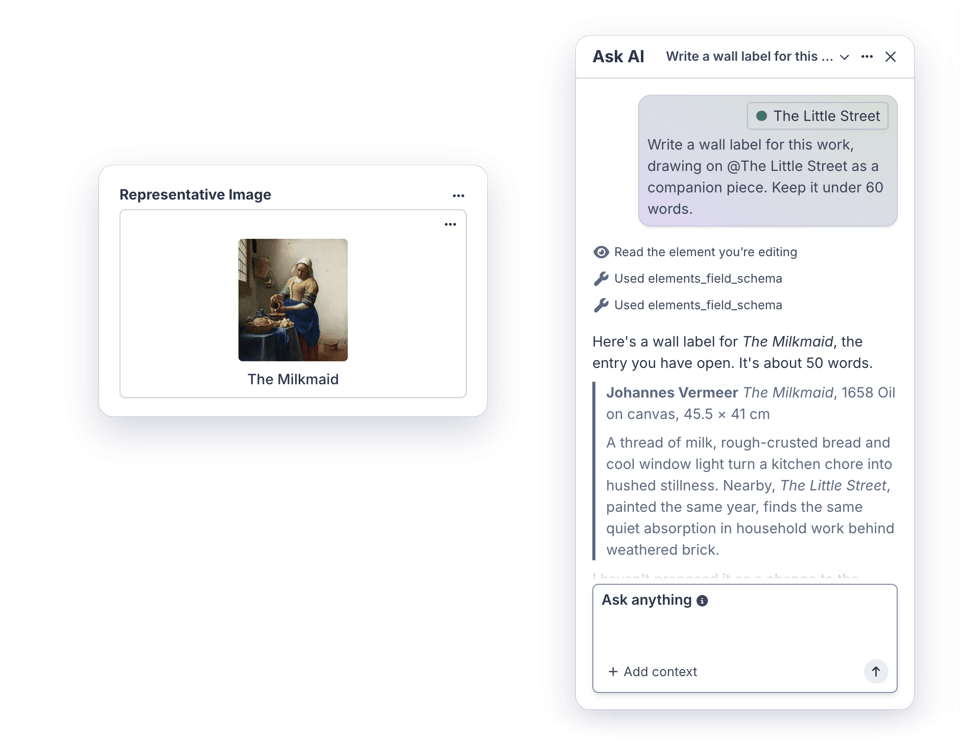
Ask AI proposes changes for you to review.
Apply them to the form, then save when you’re ready.
@mention other entries to give it more context.

AI features stay off until an administrator chooses a provider and model from Settings → Connections.
Publishing Workflows and Releases
Craft Pro and Enterprise now support publishing workflows, which require drafts to be reviewed and approved before they can be applied. A workflow is made up of stages, such as a curatorial review followed by leadership sign-off, and each stage can require approvals from specific user groups. Reviewers approve drafts or request changes from the draft’s new Workflow tab, and everyone involved gets notified along the way.
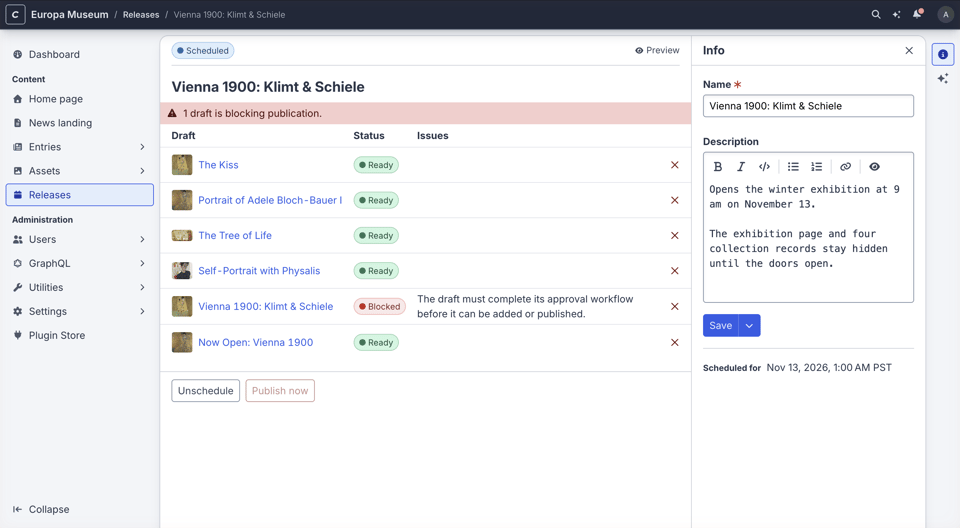
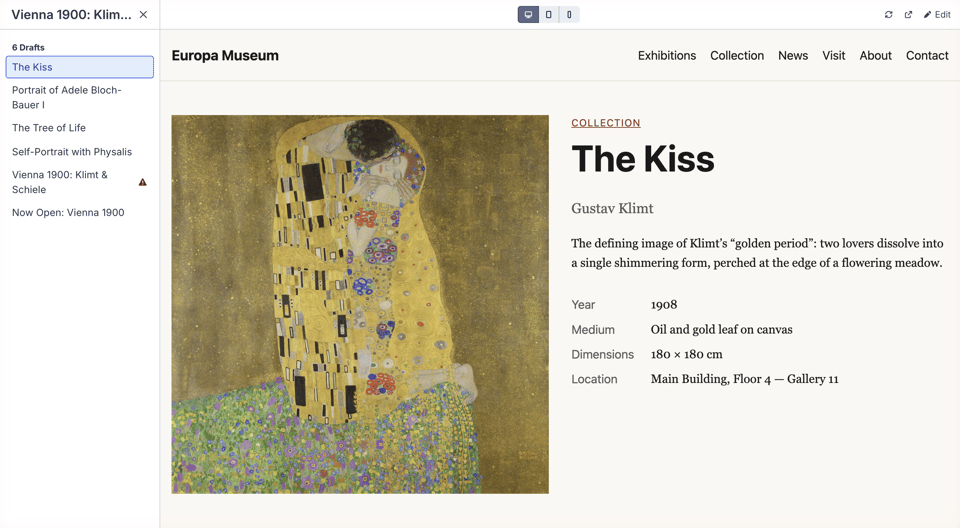
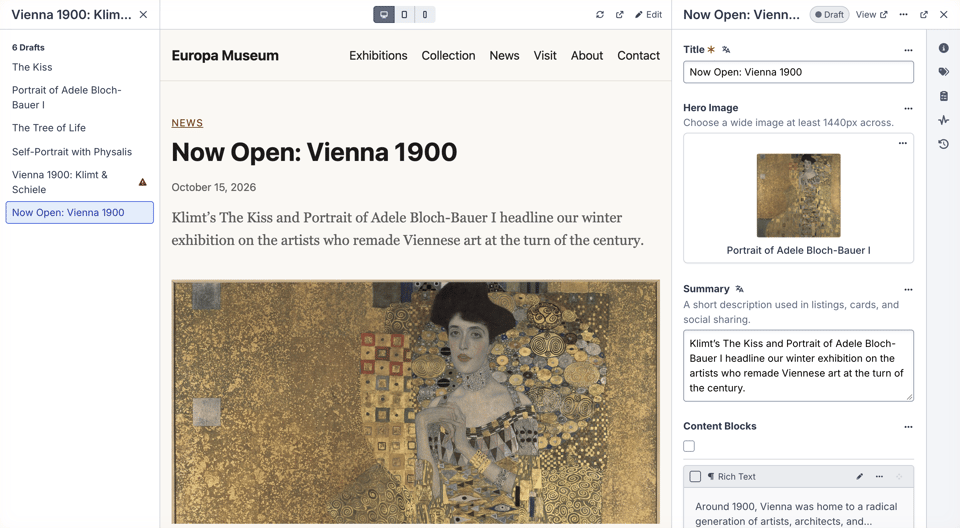
Releases group drafts of entries and other elements together, so they can be scheduled and published all at once. You can step through a release’s drafts in a Live Preview-style view, and see exactly which drafts are still holding it up.
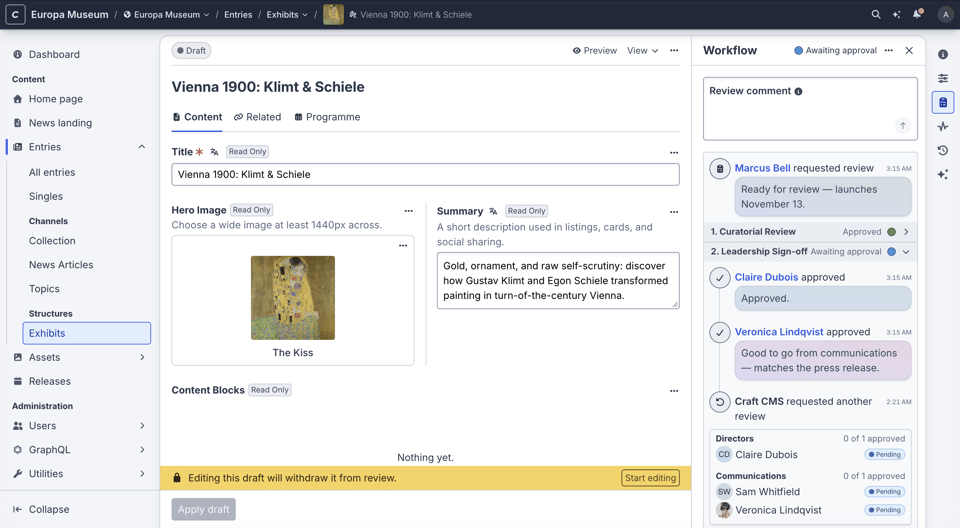
A draft awaiting sign-off from its Workflow tab.
A release, with its drafts scheduled to publish together.
Previewing a release’s drafts on the front end.
Open any draft’s editor right from the release preview.
Compare
Entries and assets now have a Compare screen, which shows two versions side by side, with changed fields highlighted. Compare a draft with the current entry, two revisions, your unsaved changes with the last saved version, or an entry’s content in two sites.
You can even compare two separate entries: select them in an element index and choose Compare. Then copy a field’s value from one side to the other with a click.
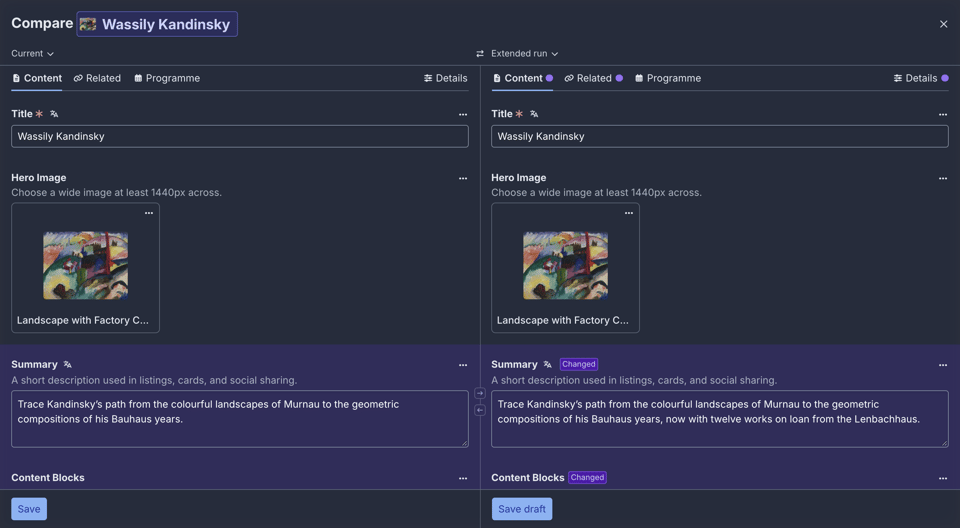
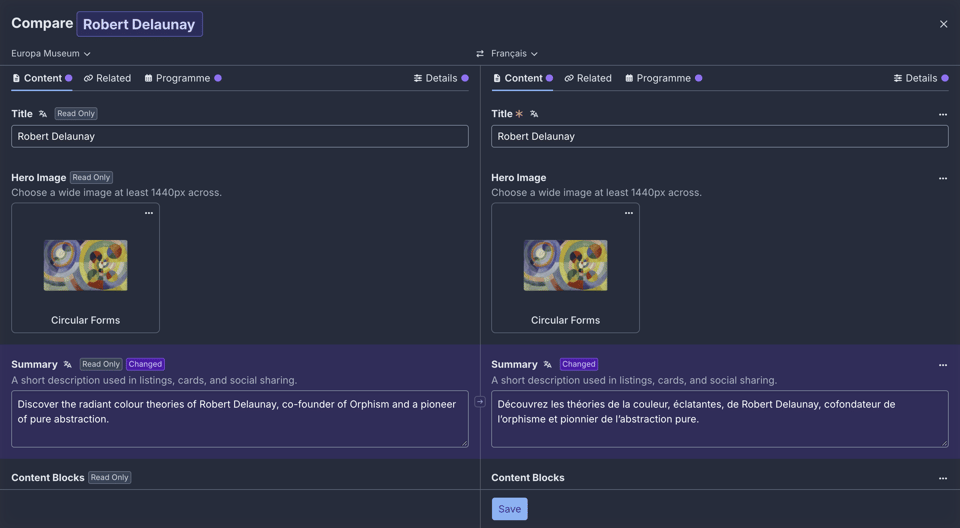
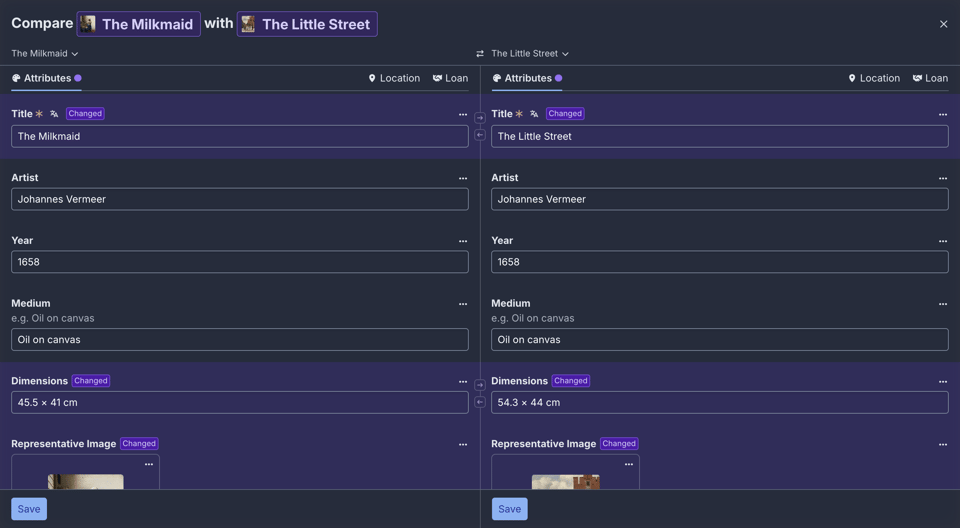
Compare a draft with the current entry, with its changes highlighted.
Compare an entry’s content in two sites, such as a translation.
Compare two entries side by side.
Copy and Paste
Field values can be copied and pasted anywhere the field appears. Choose Copy value from a field’s action menu, then Paste value on any field that can take it, or just press ⌘V. Copied values are put on your system clipboard as well, so they’re ready to paste into other apps: relations as their titles and links, tables as rows a spreadsheet can split, and links as their URLs.
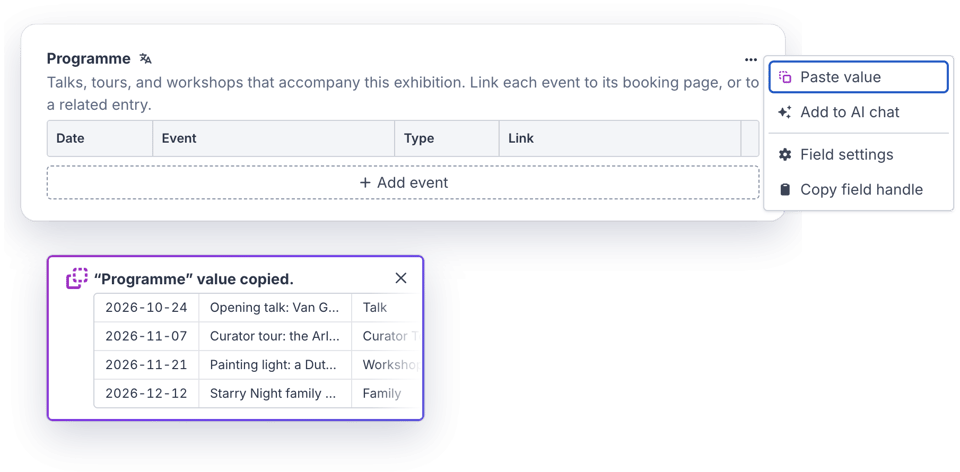
Paste a copied value into any field that can take it, with a preview of what you copied.
Comments and Activity
Elements now have an activity timeline, showing who changed what, and when. Leave comments on it with Markdown formatting, mention teammates to notify them, and include syntax-highlighted code blocks when you need to.
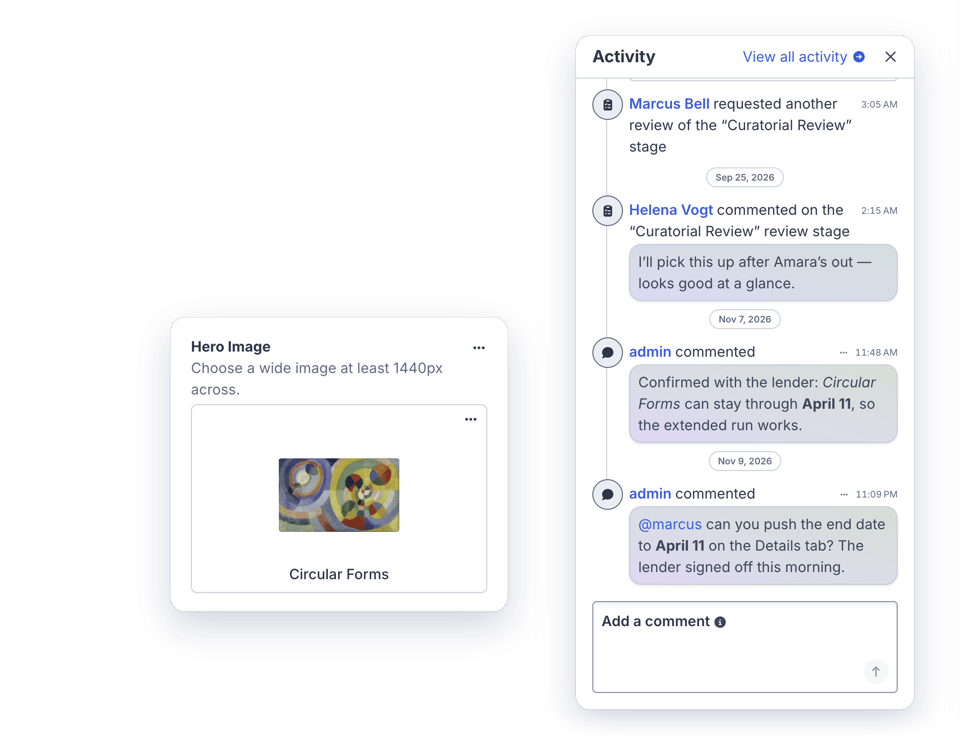
Review history and comments, side by side with the entry.
Live Preview
Live Preview’s editor is now docked on the right, with the element’s details panels right there. Previews update more smoothly, so it all feels snappier and less finicky.
Element editor slideouts have a Preview button of their own now, too.
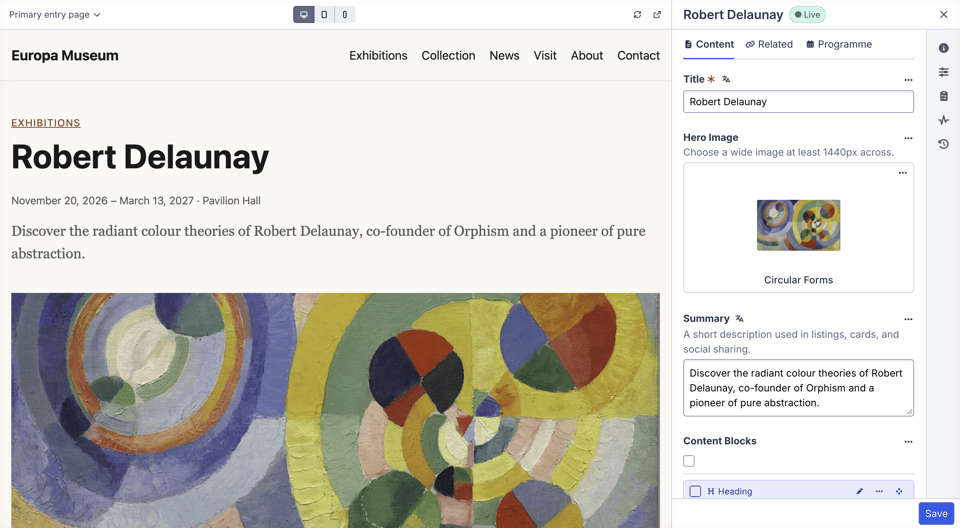
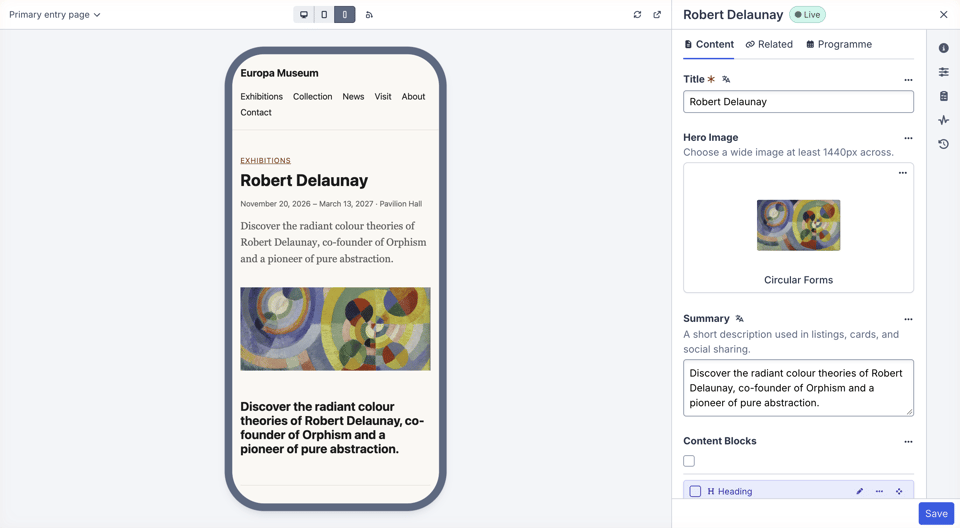
Live Preview, with the editor docked to the right.
Check how the page looks on a phone or tablet.
Assets
Assets got a lot of attention in Craft 6.
- Background uploads. Uploads from the Assets index continue in the background as you move around the control panel, with progress, retries, and cancellation.
- Duplicate detection. Images that look like copies of ones you’ve already uploaded, even resized or recompressed, are flagged before they’re saved.
- Embedded metadata. Images keep the metadata embedded in their files, such as their title, description, alt text, creator, copyright notice, camera, and location. Asset edit pages show it alongside a map of where the photo was taken, and indexes can show it in columns along with each image’s colors.
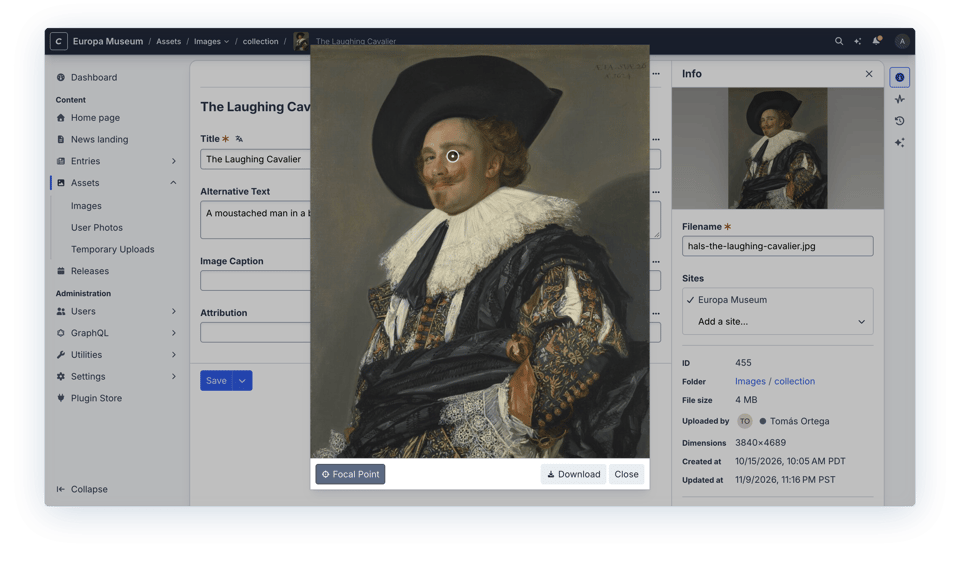
- AI image analysis. With an AI provider set up, Craft can generate alt text and titles for images, tag and classify them, and detect their focal points.
- Bigger thumbnails. Asset indexes have a new Thumb Size setting, and images show a blurred placeholder while they load.
- Image editor improvements. The image editor has undo, redo, and a Revert to original button.
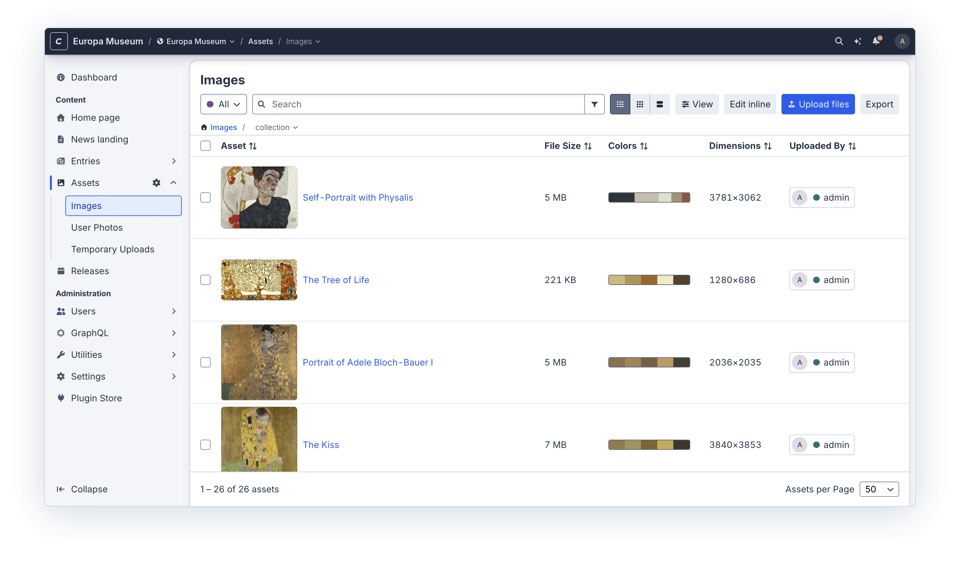
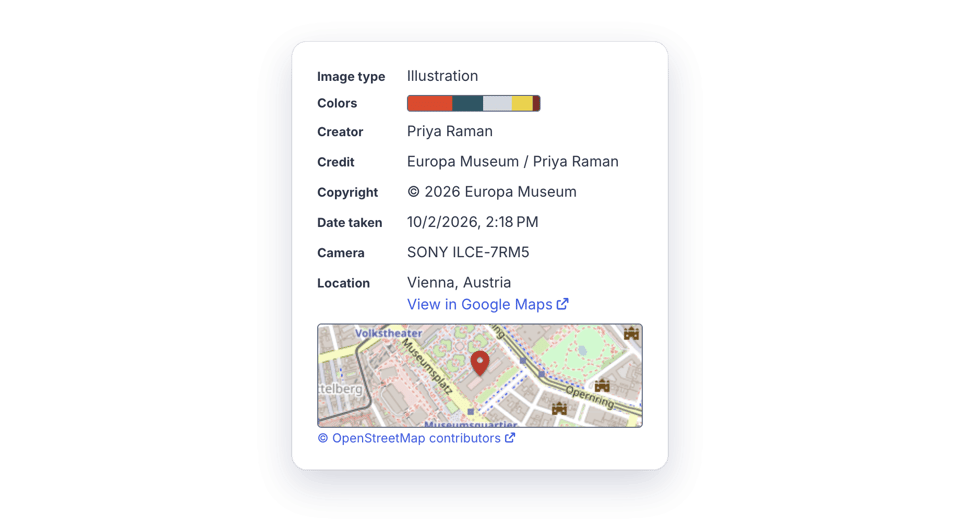
Larger thumbnails, with image colors and dimensions in the index.
A focal point, detected by AI.
Image analysis and embedded metadata, including where the photo was taken.
Fields and Field Layouts
- Sidebar tabs. Field layouts can have tabs that live in the element editor’s details sidebar, and any tab can have an icon.
- Markdown field. There’s a new core Markdown field type.
- Table fields can have Link columns and default row values, and their column settings open in a slideout.
- Per-site Matrix entries. Matrix entries can be disabled for individual sites.
- Default tips and warnings can be set on custom fields, and instructions, tips, and warnings support Markdown.
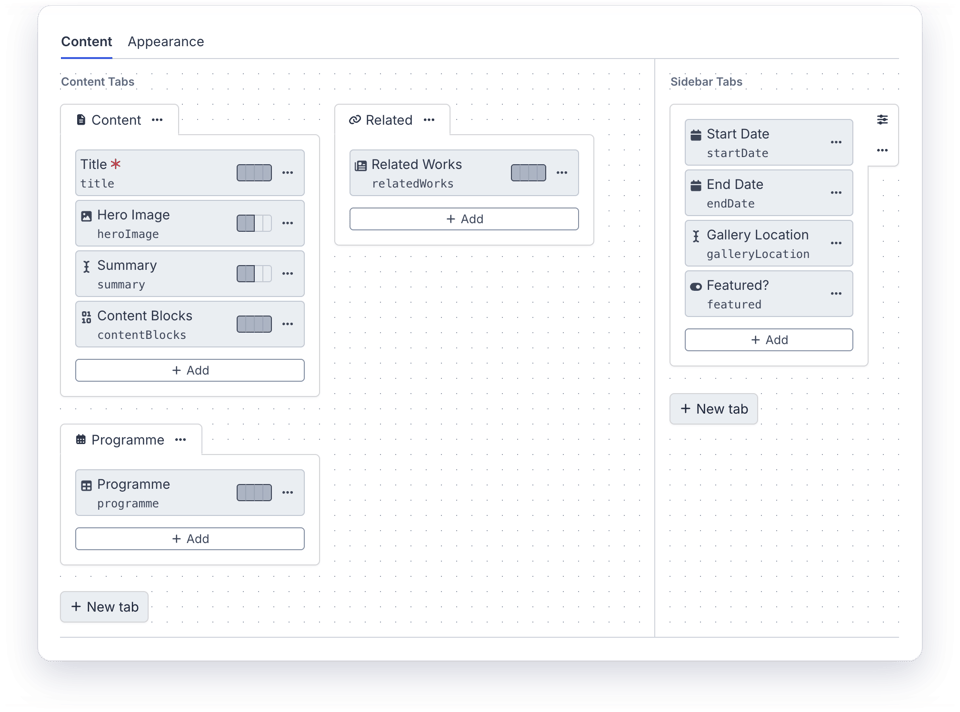
Sidebar tabs in the field layout designer.
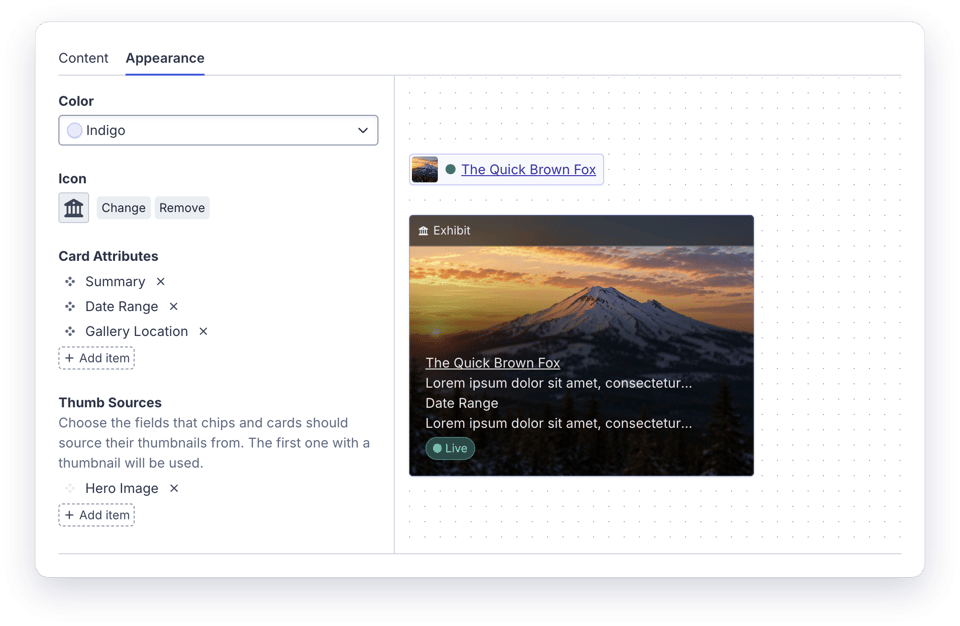
The new Appearance tab, with a live card preview.
Accessibility
We’ve continued working toward WCAG 2.2 AA conformance throughout the rebuilt control panel, including element indexes, element editors, and the login page. See our accessibility page for our reports and quarterly updates.
Built on Laravel
Craft 6 is a Laravel application. Routing, authentication, sessions, mail, migrations, and maintenance mode all go through Laravel now, so Craft projects can tap into the whole Laravel ecosystem.
- Blade. Blade views can be loaded from Twig templates, and Craft registers Blade directives that bring them close to feature parity with Twig.
- Laravel Debugbar gets Elements and Deprecations panels.
- Eloquent elements. Apps can manage their own Eloquent models as elements in the control panel, with indexes, editors, permissions, search, and relation fields, while the models and tables stay just as they are.
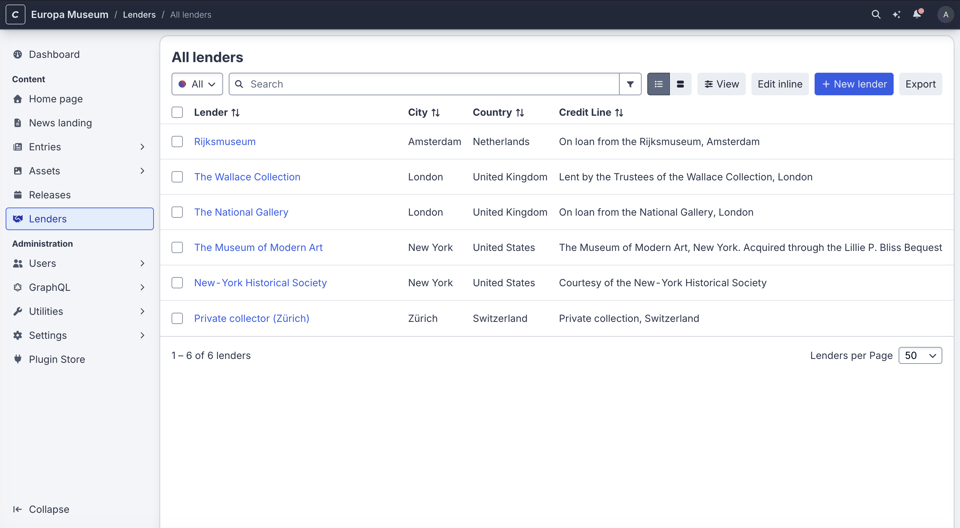
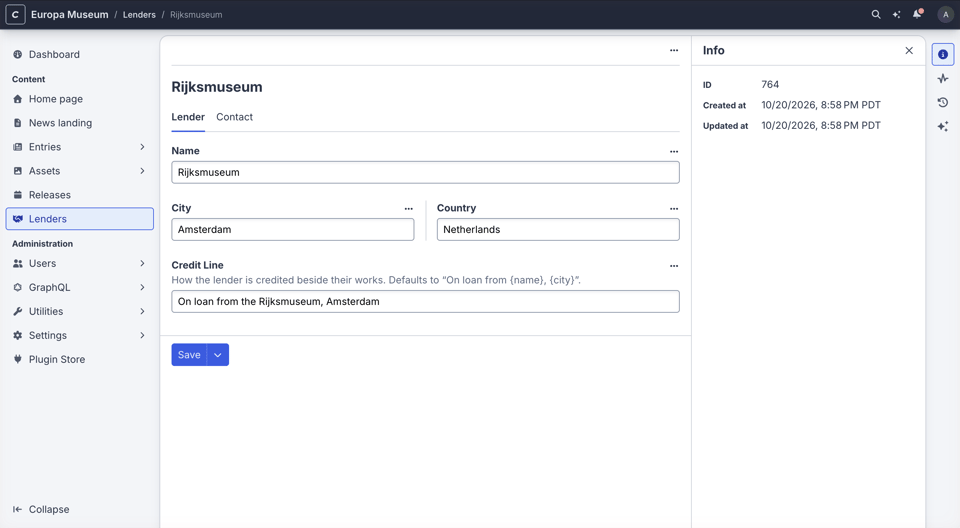
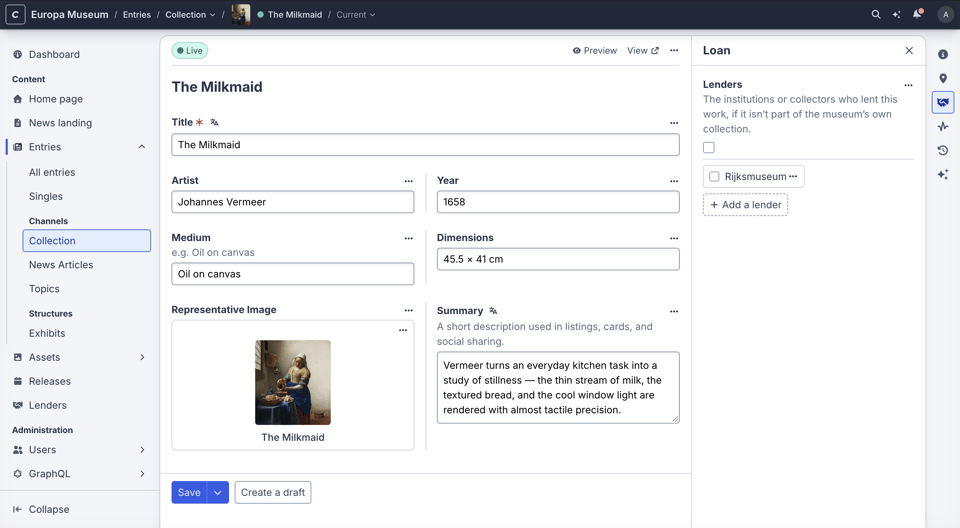
An app’s Lender model, managed as elements.
Editing a Lender in the element editor.
Lenders related to an entry through a relation field.
So Much More
That’s just scratching the surface. With over 250 new features and enhancements, Craft 6 is the biggest Craft CMS release ever, and there’s something in it for everyone. Authors get a faster, friendlier control panel that helps them do their best work, and developers get the whole Laravel ecosystem at their fingertips. Dig into the 6.0.0-beta.1 release on GitHub for the full list of changes.
Try It Out
Craft 6 is ready for you to take for a spin. Follow the installation instructions to start a new project, or the upgrade guide to bring over an existing Craft 5 site.
We’ve put a lot of work into making that upgrade as simple as possible, starting with craft6-revamp, a tool that automates much of the work of preparing a Craft 5 project for Craft 6.
Then there’s the Yii2 adapter, which means you don’t have to rewrite everything at once. It’s an optional package that keeps Craft 5’s Yii-based APIs working on Craft 6, so the plugins, modules, and configuration you already have keep running while you update them at your own pace.
craft6-revamp adds the adapter to your project automatically, and the Plugin Store flags plugins that need it and installs it for you along with them.
Keeping Yii2 and Craft 5 around indefinitely isn’t ideal, of course, so the adapter will even help you remove itself. It comes with a new Yii2 Loose Ends utility, which keeps track of everything in your project that still depends on the adapter. The utility can fix some issues on the spot, update plugins that no longer need the adapter, and suggest AI prompts for the rest.
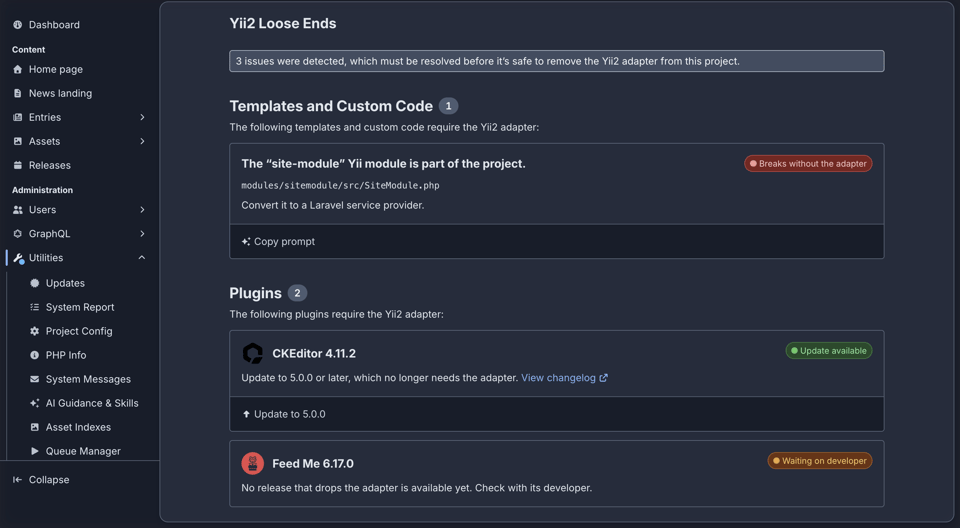
The Yii2 Loose Ends utility lists everything that still depends on the adapter, with a way to resolve each item.
Most of our first-party plugins have already been updated to support Craft 5 and 6 simultaneously in their current versions, thanks to the adapter. Fully ported, Craft 6-exclusive major versions will follow. The goal is that you can get up and running on Craft 6 with minimal plugin updates, and get around to updating your plugins as a follow-up task, whenever you’re ready.
If you maintain plugins, see our plugin development resources.
Craft 5 Long-Term Support
There’s no rush to upgrade, either. Craft 5 will continue receiving security updates for five years after Craft 6 is released, until March 2032.
Find a bug? Let us know on GitHub. And to stay in the loop as we head toward a stable release, subscribe to our newsletter.